
Needs you
Four things can stop a run and ask for a person: a plan to approve, a question, a permission request, and a failure that has been parked. All four land in the same place.
Every project’s board has a Needs you column. The sidebar’s Needs you gathers them across every project, one swimlane per project, with the total in the badge.
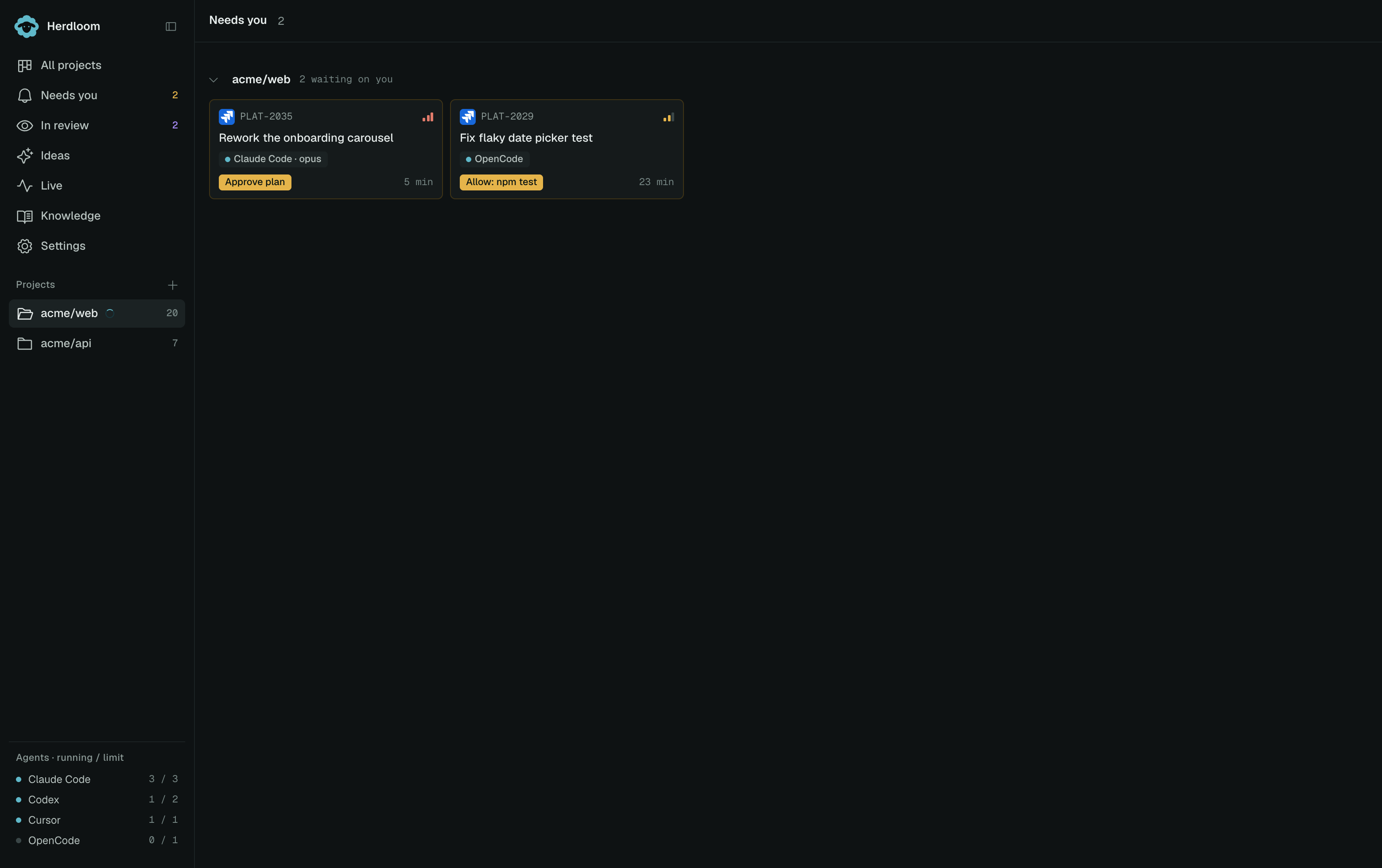
A plan to approve
Section titled “A plan to approve”The card says Approve plan. Opening it shows the plan in full: the goal, numbered steps, the files the agent expects to touch and the risks it sees. Approve and run starts implementation. Choose Request changes to send feedback and have the planner return an updated plan first.
A question
Section titled “A question”The card says Plan has a question. The agent stopped because something the code could not answer would change what it builds. The question sits above the plan with an answer box, and the plan is still there to read while you decide.
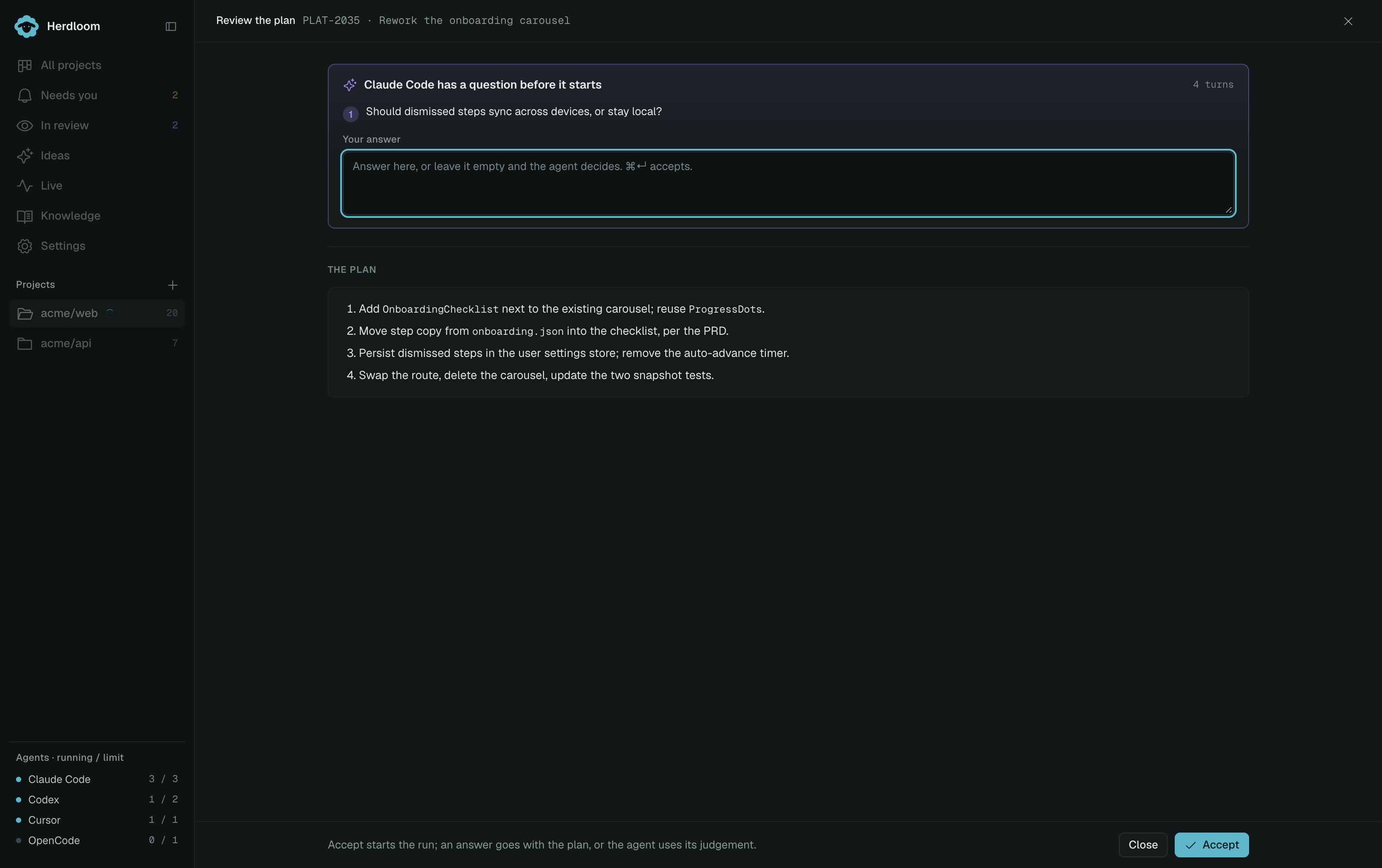
Answer and choose Approve and run, and the answer goes into the run with the plan. Leave the box empty and approve, and the agent uses its judgement. An agent can also stop mid-execution with a question; that arrives the same way, and answering sends the run on rather than starting it over.
A permission request
Section titled “A permission request”An agent asked for a tool it was not given. This is a one-click decision, so it stays inline in the drawer: grant it once, or grant it for this project from now on.
A parked failure
Section titled “A parked failure”A run that could not finish waits with the buttons that fit what went wrong. The failure is named in plain words — ran out of turns, tests failed, finished without changes. A sign-in or billing problem offers Retry, a link to the setup check and Back to backlog, because retrying spends attempts on something only you can fix. A failed plan phase offers Plan again rather than an execution with no plan. Discard changes appears only when the checkout actually has uncommitted work.
Amber, and a chime
Section titled “Amber, and a chime”Amber means a person is needed. Nothing else in the app uses the colour, on a card, in a column header or in the sidebar. When the sidebar is collapsed the count becomes a pulsing amber dot on the bell.
A short two-note chime plays when a ticket lands in Needs you, and a softer tone when one lands in In review. Both have a switch in Settings → General, with a Play button beside each so you can hear which is which.
Clearing the column
Section titled “Clearing the column”The column is the queue of decisions, so work it like one. Plans first, since a plan is the cheapest moment to catch a misunderstanding; then questions, which are usually one line; then failures, which take the most reading.
A project can answer some of this for you. The Needs you rule lets Herdloom decide open questions itself, and the Planning rule approves a plan that asks nothing on the spot. Neither ever grants a permission request, and neither ever clears a failed run. Those always wait.
Approve a plan and answer a question walk through both pages. How much you approve sets how often this column fills.