Bundle tickets into a work item
A work item is a group of tickets that should ship together. It owns one checkout, one branch, and one pull request. A ticket still keeps its own instructions, plan, activity, and review.
Tickets inside a work item run one at a time, building on the code already there. Separate work items can run in parallel, within your project and agent limits. This avoids merging a separate branch for every step of the same feature.
1. Choose what ships together
Section titled “1. Choose what ships together”In the project’s Backlog header, press Bundle. From an individual ticket, Bundle and queue opens the same dialog with that ticket selected. One ticket can be a work item too.
Choose New work item under Destination, give it a name, and select the tickets. For example, bundle “Save account preferences”, “Choose email notifications”, and “Remember display settings” into “Account preferences”. Keep unrelated billing work in another item so it can progress independently.
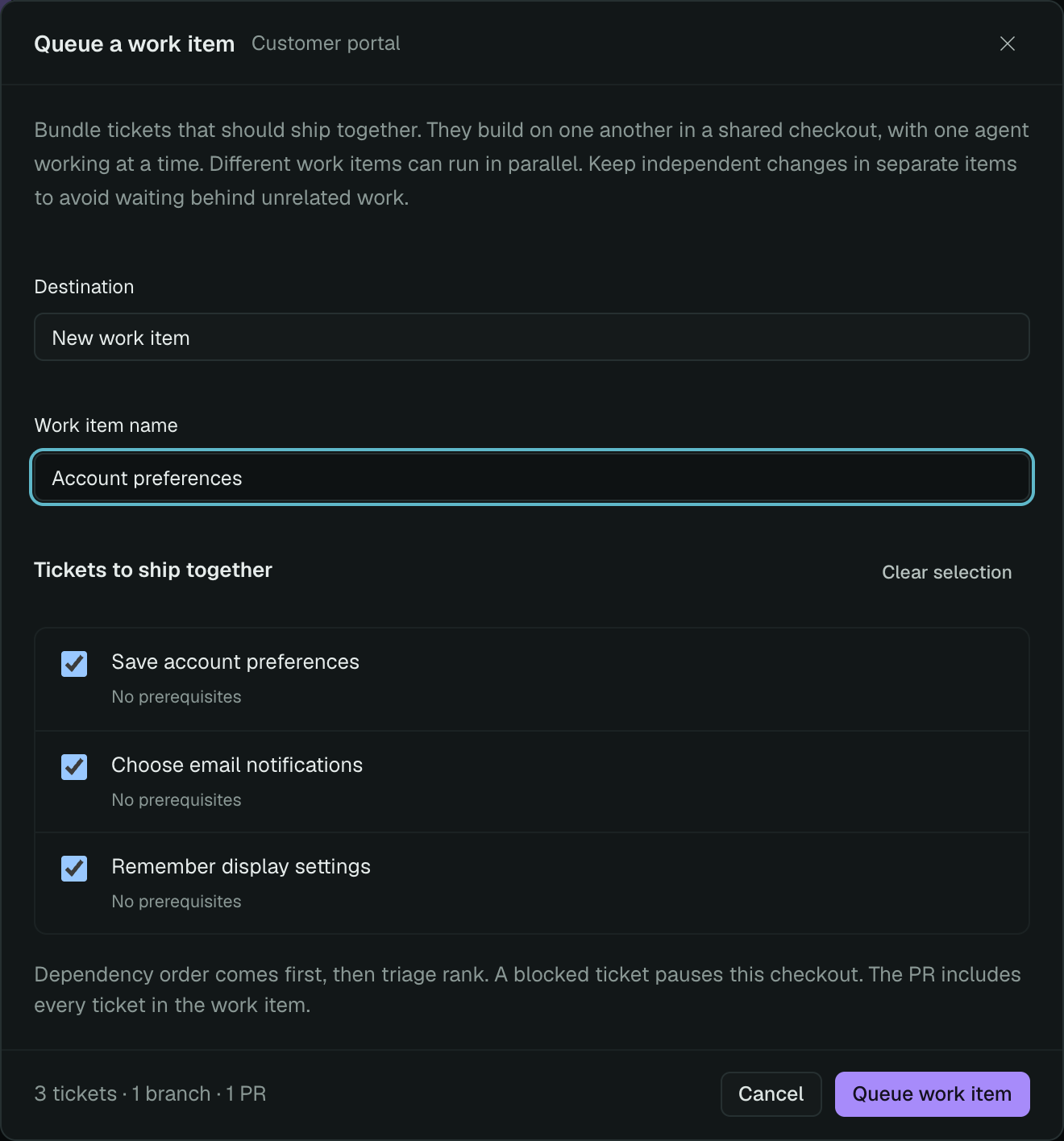
Example project in Herdloom 0.2.45. Click any screenshot to enlarge it.
The dialog shows the target branch. Each new work item saves the project’s Target branch for new work when it is queued. Later settings changes or checkout switches do not redirect existing work items.
Review the selection, then press Queue work item. Queueing can start work immediately, according to the project’s automation settings. You can use triage first to establish the order and dependencies.
The dialog warns about unfinished prerequisites outside your selection. Include related prerequisites in the same item to build together, or wait for their work to land before the dependent ticket runs.
2. Follow the shared work
Section titled “2. Follow the shared work”The work-item panel above the board shows its name, progress, and current ticket. Expand the name to see its branch, saved target, and members; select a member to open its ticket drawer.
Dependency order comes first, then triage rank. A completed prerequisite in the same bundle is available directly in the shared checkout. A prerequisite in another item must be merged into the dependent work item’s saved target branch first. Cycles that would make work items wait on each other are rejected.
An unanswered question, approval, or failed ticket holds up that checkout. Deal with it in the ticket, or pause the item while other work items continue. Raising concurrency does not make two agents write into the same checkout at once.
3. Pause, resume, or change the scope
Section titled “3. Pause, resume, or change the scope”Pause stops the active work and keeps the branch and files. Resume continues the interrupted phase; questions and approvals still need answers.
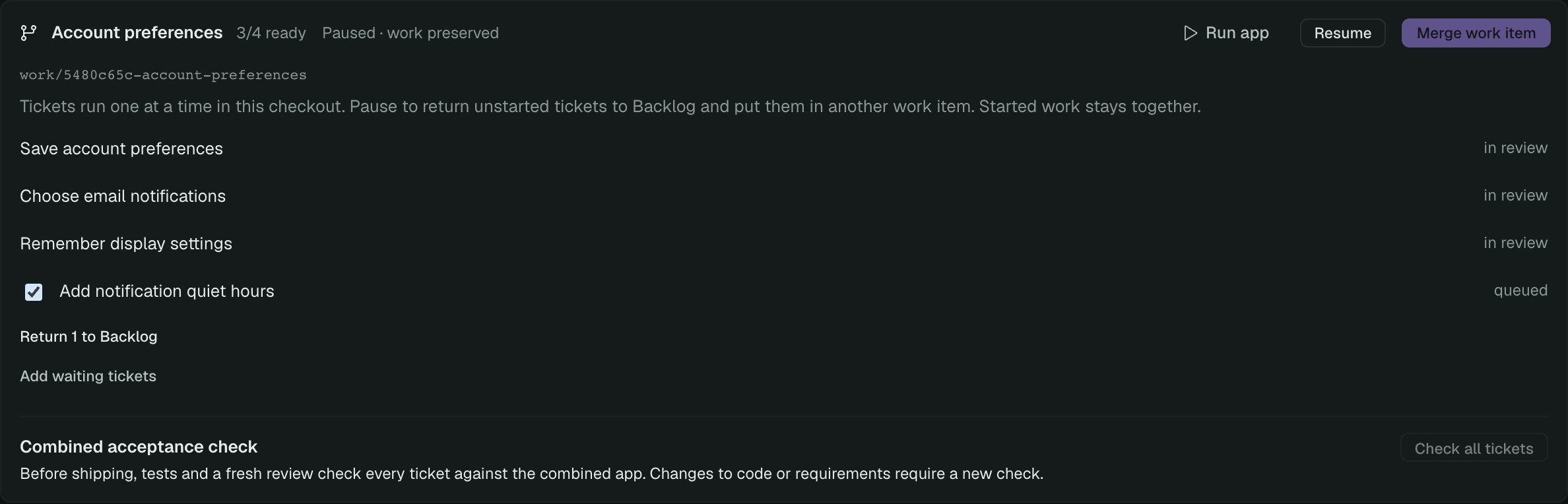
To separate work that has not started, pause the item and wait for the run to stop. Expand it, select the eligible tickets, and press Return … to Backlog. You can then bundle those tickets separately. Dependency links are preserved, so a ticket may still have to wait for the original item to land.
Started contributions stay together on the branch. Removing a card would not safely remove its code. Use Add waiting tickets to extend an active item, or select it under Destination in the queue dialog. Started tickets keep their work item and cannot be folded into a different shared checkout.
4. Check the combined app
Section titled “4. Check the combined app”When every ticket is ready, expand the item and press Check all tickets. Herdloom runs the project’s configured test and build commands, then starts a fresh read-only review against every ticket’s requirements. Configure those commands in project settings so the check includes your own automated validation.
The combined check is optional. A later ticket can accidentally break an earlier one, so it is useful even when individual reviews passed. It needs an enabled review agent. If you have tested the app yourself, you can ship without running this check.
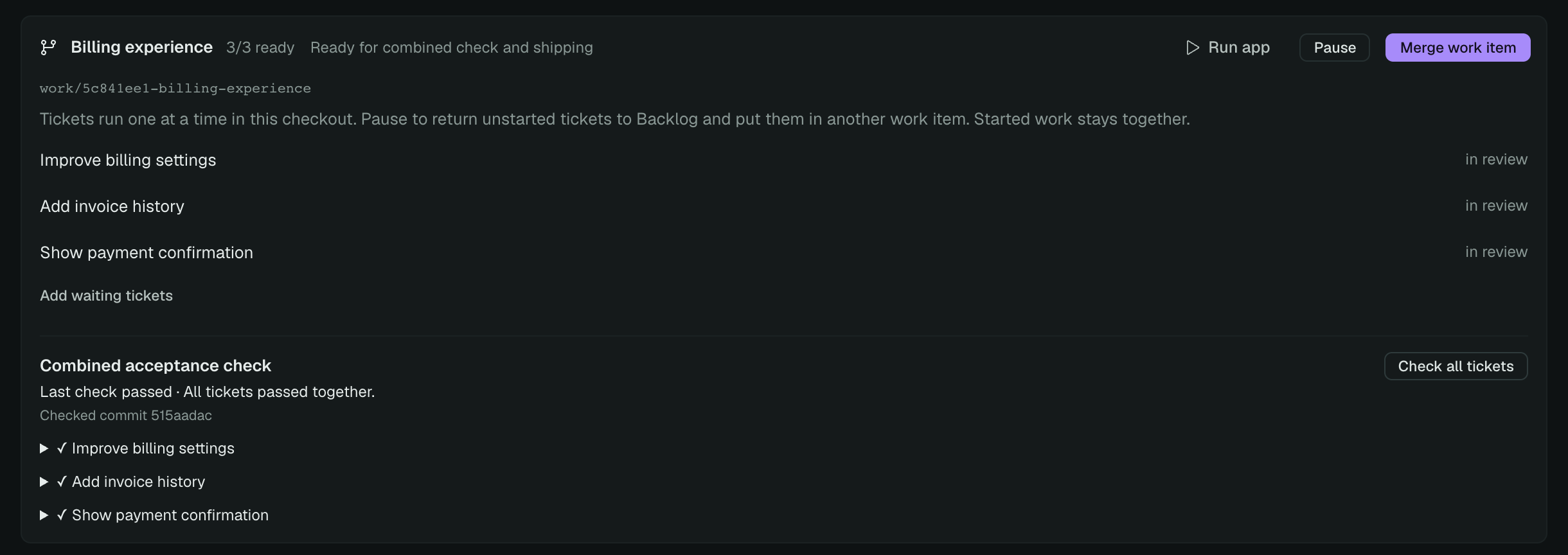
Expand each finding to read the evidence. A failed or incomplete check stops Check and ship. Correct the work and check again, or choose manual approval when shipping. Findings remain visible after manual approval; they are never relabeled as an automated pass. Stop check cancels a running check without discarding work.
A pass belongs to the checked commit and requirements. Changes to the code, ticket requirements, or relevant check settings require another check. Interrupted or stalled checks stop with a reason; they do not count as a pass.
Use Run app on the work item to see the combined version so far. It is the same checkout used by its tickets, so you see their changes together. Run the app explains how to compare it with the main checkout.
5. Ship one branch
Section titled “5. Ship one branch”With a remote, Create one PR opens a shipping dialog for the whole item. Choose:
- I’ve checked this myself — create the PR or merge immediately, without another test, build, or AI acceptance check.
- Run the combined check first — run the configured checks and AI review, then ship if they pass. A current passing result is reused.
Merge into main (or the item’s saved target, such as master) is also available directly
on the work item. It merges the whole item into the main checkout. Switch that checkout to the item’s target branch first using the header branch button. All tickets move to Done together.
Open PR opens an existing PR; Update PR uses the same shipping choice for later changes.
The ticket drawer offers the same choice when creating or merging a PR.
Manual approval is recorded for the selected commit and requirements. If they change while the dialog is open, inspect the new version and confirm again. Git readiness checks still require committed work, finished tickets, and an idle checkout. Conflicts and GitHub branch rules still apply. When a manual merge conflicts, update the branch and inspect the result before approving it again.
Opening a ticket drawer only checks Git readiness to enable the shipping buttons. It does not start an agent, test, or build. An existing PR also loads GitHub’s merge requirements separately.
After a local merge, Changes publishes the assembled base branch. It can also commit selected extra source edits locally, then push them separately. Use the work item’s shipping actions to open a PR.
When a PR merges on GitHub, Herdloom records its actual landing commit and updates the local base checkout when it can fast-forward safely. If local edits or divergent commits prevent that, Sync needed in the project header explains how to recover. Open it to pull the changes or combine the histories. A ticket being Done on GitHub does not mean local edits can be overwritten. See Changes for the full round trip.