
Start with an idea
You do not need to write a backlog before opening Herdloom. Start with an outcome, talk it through with a coding agent, and accept the tickets when the work feels right.
This quick start takes you from a first message to a proposal in Backlog. To write a ticket yourself, follow Your first ticket. If the work already lives in a tracker, import your tickets instead.
1. Pick a project and an agent
Section titled “1. Pick a project and an agent”Add your repository if you have not already. Open Ideas in the sidebar, choose the project, and pick an installed coding agent. You can leave the model and effort at CLI default for your first conversation.
2. Describe one useful improvement
Section titled “2. Describe one useful improvement”Say who the change helps and what a good result looks like. For example:
I want a project activity feed so the team can see recent changes. Start with a simple feed, then add filters and live updates as separate tickets.
Use Attach if you have a brief, screenshot, or spec, then choose Send. The agent reads the project to help shape its suggestions.
3. Explore the proposed tickets
Section titled “3. Explore the proposed tickets”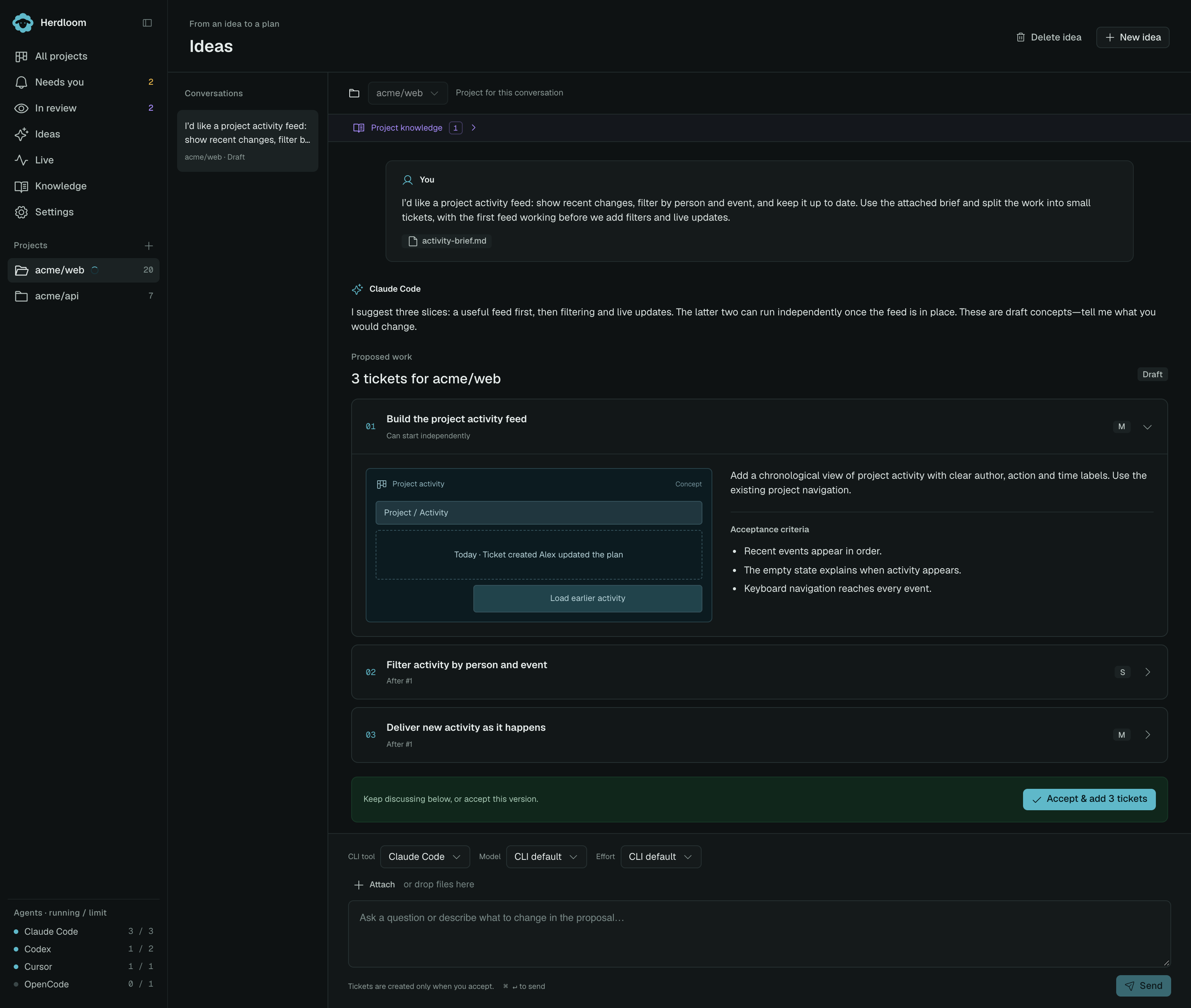
Example in Herdloom’s demo UI. These tickets are still a draft.
Open each ticket’s accordion to read its description, concept sketch, and acceptance criteria. The header shows its size and dependencies. Reply with a correction or ask for a smaller first version if the proposal is too much. Nothing is added to the board yet.
4. Accept and choose what to run
Section titled “4. Accept and choose what to run”Choose Accept & add tickets when you are happy with the proposal, then View backlog. The accepted tickets include their dependencies and the context you attached.
Pick a small ticket and follow Queue the work item to take it through planning, execution, and review. Accepting an idea creates the tickets; it does not start them.
You can return to the same conversation to add more work later. How to use Ideas covers attachments, revisions, follow-up proposals, and managing saved conversations. How Ideas works explains how the conversation and the board fit together.