Changes, commits and GitHub sync
Changes, beside Board and List in the project header, is the home for your main checkout. See changed files, inspect their diffs, save local commits, and bring that branch into sync with GitHub. It also links to your work-item branches so you can review and ship each item in context.
Two places for two jobs
Section titled “Two places for two jobs”| What you want | Where to go |
|---|---|
| Review and ship a work item | Its panel on the board, or Review work item in Changes |
| Create or update the work item’s PR | Create one PR or Update PR, then choose manual approval or a combined check |
| Merge a work item locally | Merge into main (or the work item’s saved target branch) on the work item |
| Inspect or commit edits in the main checkout | Changes → select files → Commit selected locally |
| Bring commits from GitHub into the main checkout | Changes → Fetch latest → Pull latest |
| Combine divergent local and remote commits | Changes → Fetch latest → Pull and combine |
| Publish commits already on the checked-out branch | Changes → Fetch latest → Push commits |
| Publish local commits when the branch requires a PR | Changes → Create PR from these commits |
A work-item PR contains its shared branch. Pushing the main checkout publishes all commits already on that branch, potentially including several merged work items. It does not publish unfinished work-item branches or run their acceptance checks.
Inspect and commit local changes
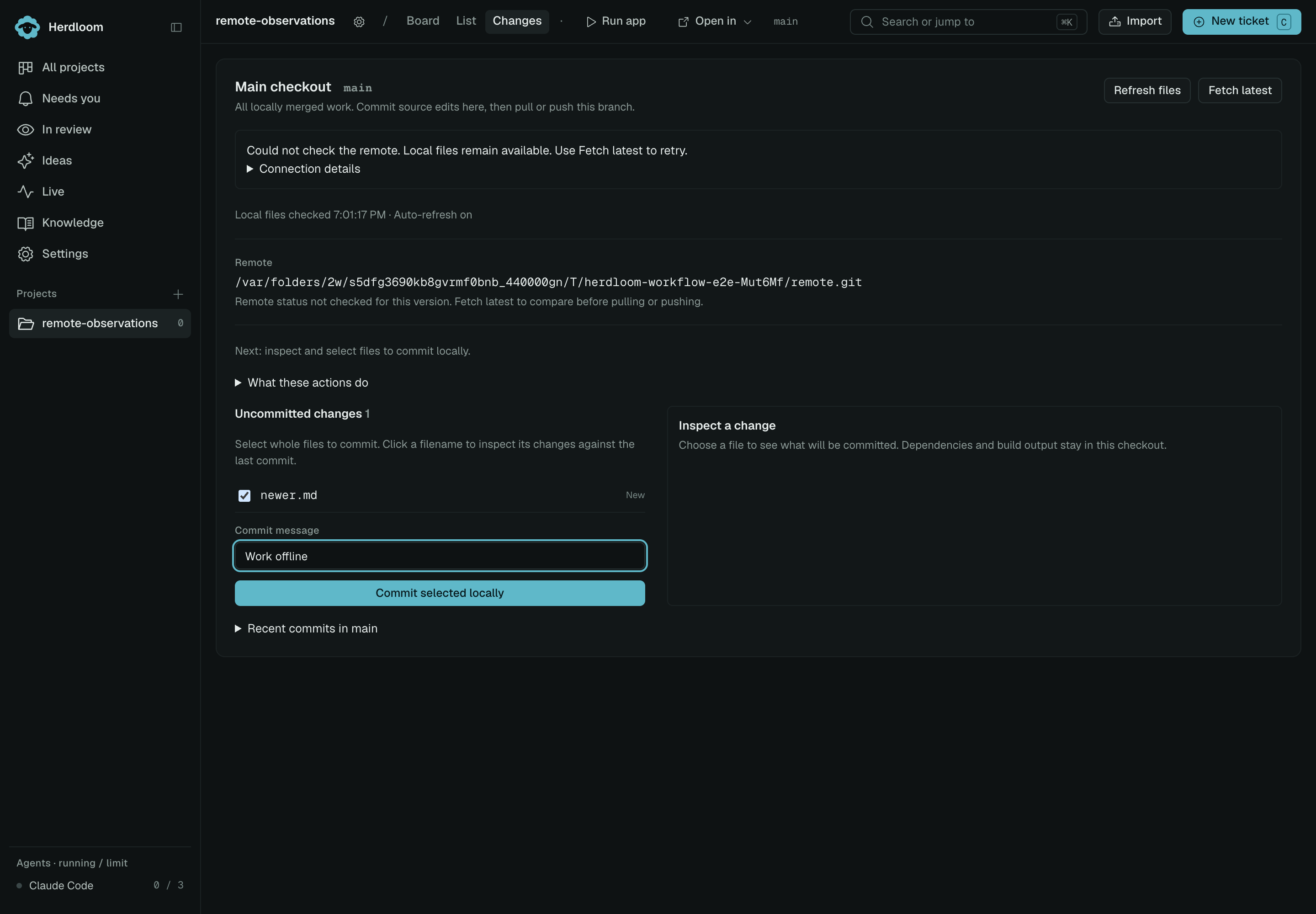
Section titled “Inspect and commit local changes”Changes opens by reading local Git state. This works without a remote or network connection. Changes follows the actual checked-out branch, shown in the header. It must have no unfinished Git operation.
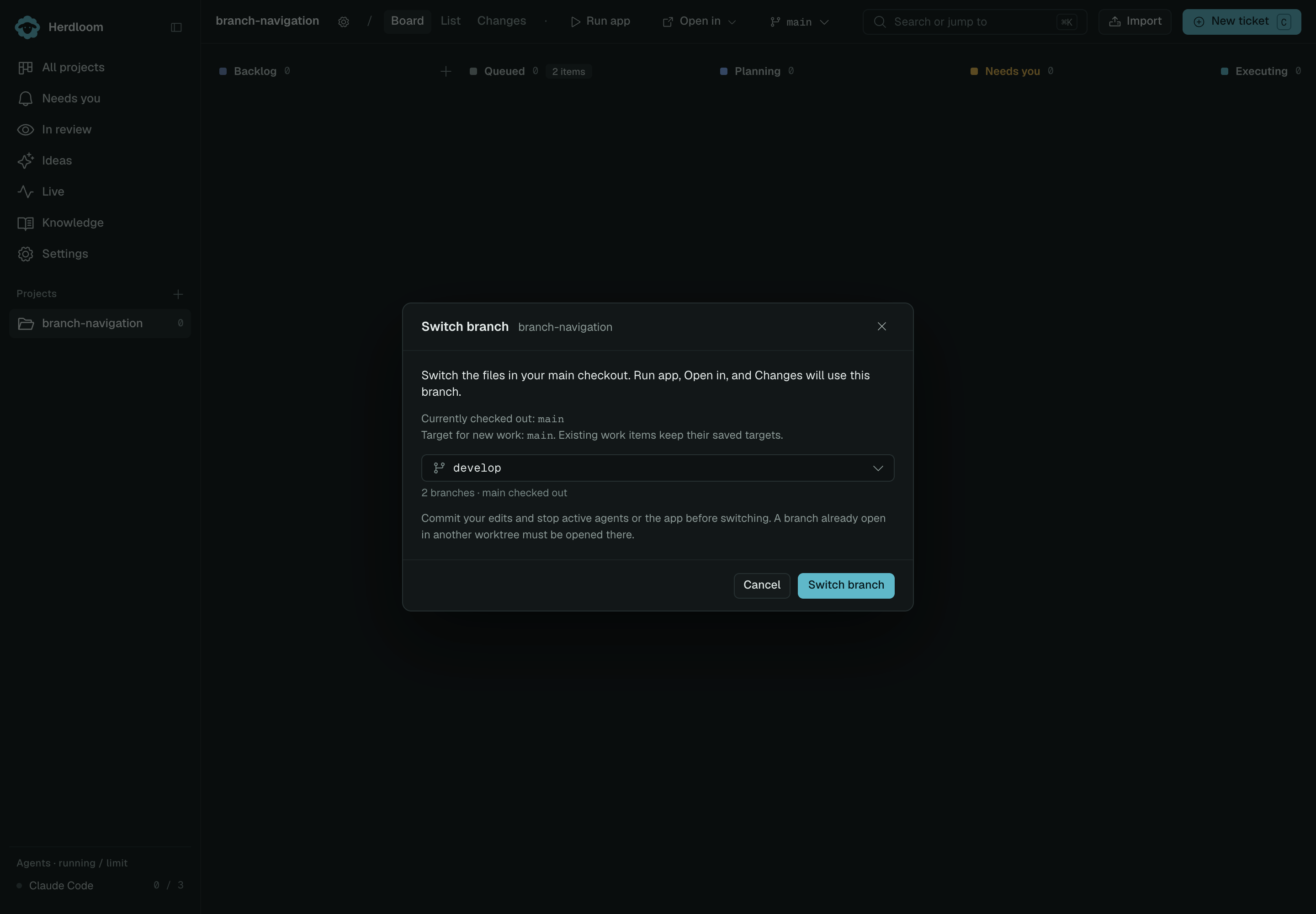
Click the branch button in the project header to Switch branch. This changes the files used by Run app, Open in, and Changes. Commit pending edits and stop active agents or the app first. Branches already checked out in a work item must be opened there. Switching never changes a work item’s saved merge target or the project’s target for new work.
While Changes is visible, edits made in your editor refresh the list and the open diff automatically. Your commit message and unchecked files stay as you left them; newly discovered files are not silently selected. A periodic rescan catches missed filesystem notifications. The local check time is shown separately from the remote check time.
Select a filename to inspect its changes against the last commit. The list identifies new, staged, and unstaged files. Selection is by whole file: a selected file’s staged and unstaged edits are committed together. Unselected files, including unrelated staged work, stay as they were.
Enter a message and choose Commit selected locally. This saves the selected source changes on the checked-out branch. Publishing is a separate Push commits action. Recent commits shows the last ten commits in this checkout.
After committing, Herdloom refreshes the remote comparison automatically. Push commits stays visible while GitHub is checked; an offline check leaves your local commit saved.
Generated and private files such as node_modules, dist, and local .env files are excluded from
new source commits. Existing commits are pushed unchanged, including anything already committed.
Large or binary files should be inspected in your editor.
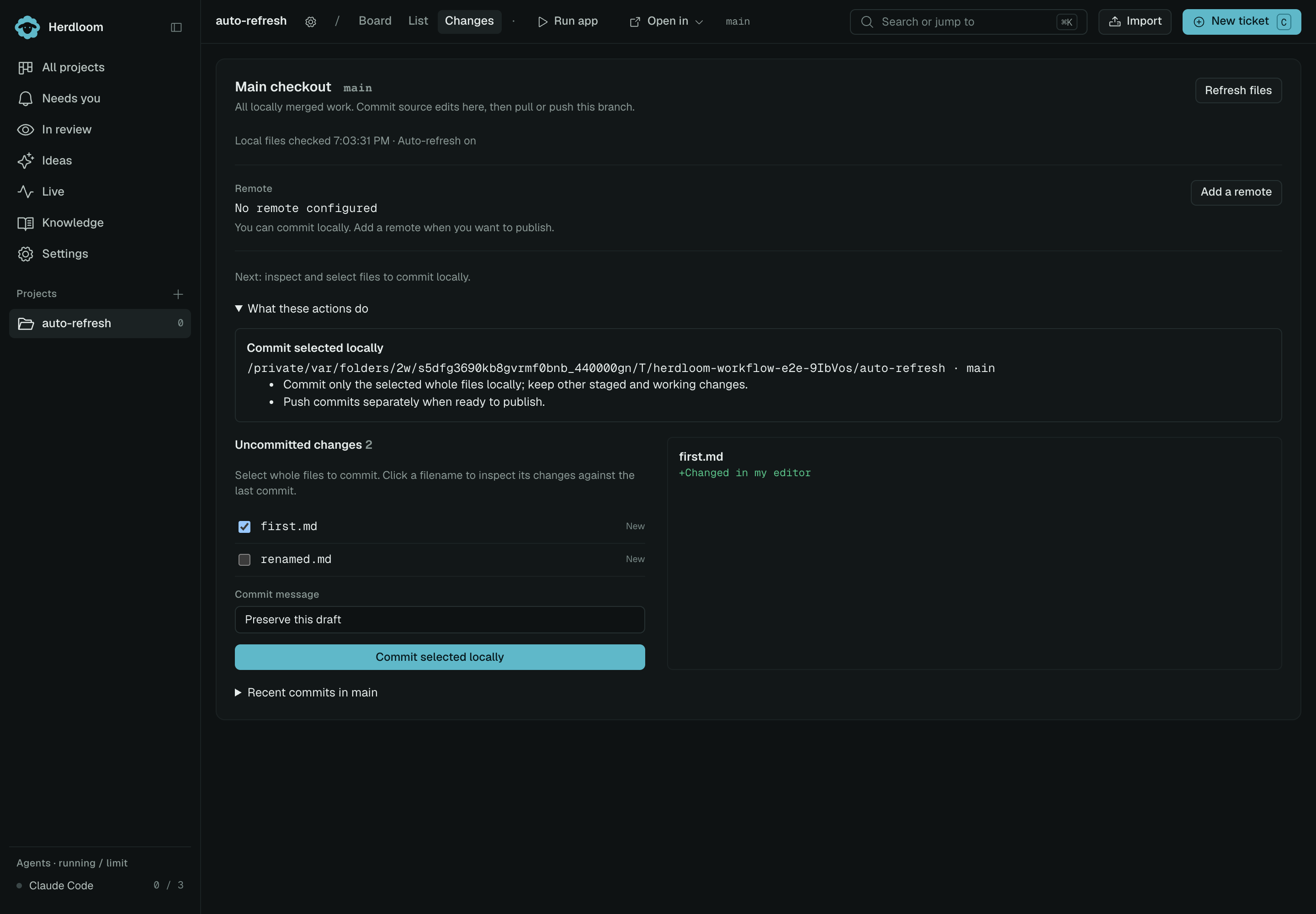
Captured from the real app in an isolated test project at 2× resolution. Click to enlarge.
Fetch, pull and push
Section titled “Fetch, pull and push”Refresh files refreshes local state. Changes checks a configured remote after opening and periodically while visible. Fetch latest asks for a fresh comparison immediately. Fetching alone does not change your working files. Counts describe the version and time last checked; they are hidden when that comparison no longer applies. A failed fetch leaves local files available to inspect and commit. Expand Connection details for the underlying Git error.
What these actions do explains the destination and steps for the actions relevant to your current checkout. Pull and push always recheck Git state before making changes.
With incoming commits, choose Pull latest. Unrelated local edits can stay in place. When both histories have new commits, Pull and combine preserves both and may create a merge commit. Inspect and run the combined app, then Fetch latest and Push commits when ready to publish.
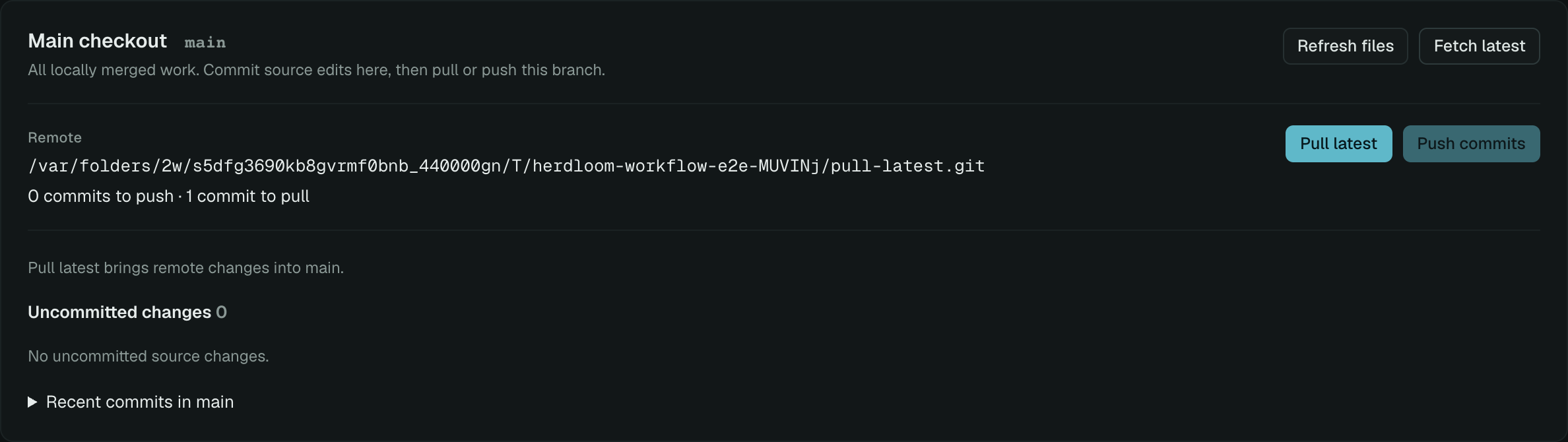
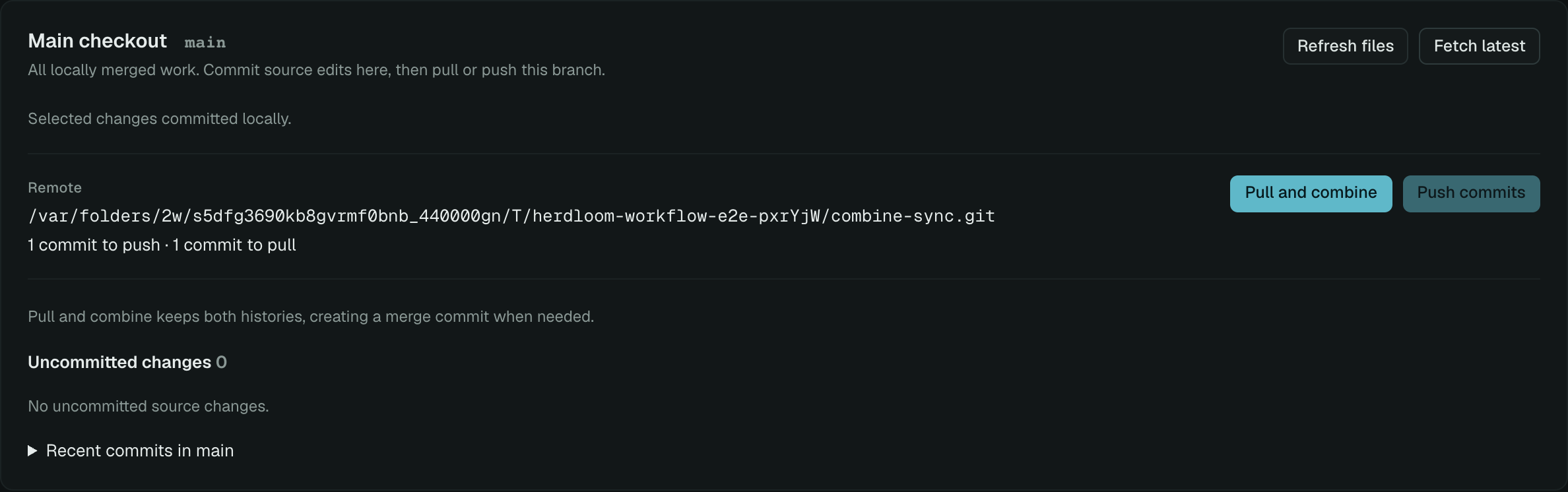
A fast-forward pull preserves unrelated staged, unstaged, and untracked files. If incoming changes would overwrite local files, Git stops and identifies them. Commit or stash those changes before retrying. Pull and combine requires a clean checkout so the merge cannot include unrelated staged changes. Herdloom does not automatically stash, reset, or discard your work. Conflicting pulls are cancelled with the file names shown; resolve them in your editor, then refresh Changes.
When origin has different fetch and push destinations, Changes shows both. Pull uses the fetch destination. The push destination must also contain the local history before Git accepts a push. No force-push or branch-rule bypass is used by project sync.
Refreshing preserves selections for files that still exist and keeps your commit message. If files or the relevant remote change after the preview, Herdloom asks you to refresh before continuing. A failed push leaves your commits saved locally.
When GitHub requires a PR
Section titled “When GitHub requires a PR”Some repositories protect main or other branches by requiring changes to arrive through a pull
request. A rejected direct push does not lose your local commit. Retrying the same push will not
remove that requirement.
- Choose Create PR from these commits. This is also available before trying a direct push.
- Review the destination, PR title, outgoing commits, and changed files. This publishes all local commits ahead of that branch, not just the latest file selection.
- Choose Publish branch and create PR. Herdloom pushes a separate branch and creates the PR. Your checkout stays on its current branch; uncommitted files stay local.
- Use Open PR to review and merge on GitHub.
- Back in Changes, choose Fetch latest, then Update local main (or the current base branch). Review and confirm the update to match GitHub’s merged version.
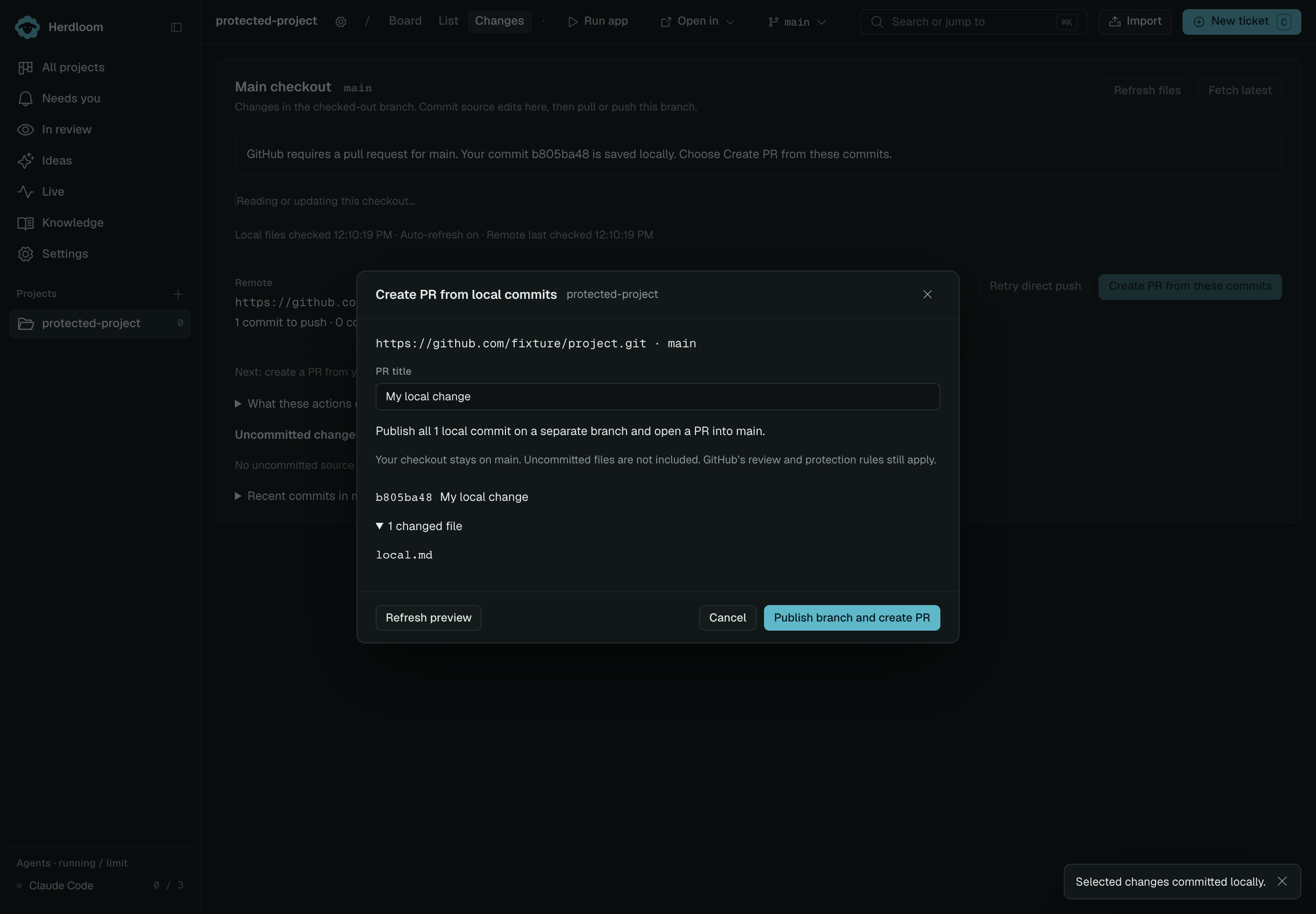
Real app capture at 2× resolution, using an isolated test repository and simulated GitHub responses.
The update handles merge commits, squash merges, and rebased merges. Original commits remain on the publication branch. Local edits, new unpublished commits, or files that would be overwritten stop the update with an explanation. Save or move edits first; preserve newer commits on a separate branch before updating. Stop an app or agent using the checkout before updating it.
A failed or interrupted PR request offers Retry publication, which uses the saved branch and commit and recovers an existing PR instead of creating duplicates. This state survives a restart. If the PR is closed without merging, reopen it on GitHub to continue. GitHub permissions and branch rules still apply. If those rules have changed, Retry direct push is available before starting a PR publication.
When a work-item PR merges on GitHub
Section titled “When a work-item PR merges on GitHub”Herdloom confirms the PR’s destination and actual landing commit, including squash merges, then fast-forwards a clean local base checkout when possible. A queued merge stays In PR until GitHub confirms completion. Closing a PR without merging returns the tickets to review and keeps their branch.
If local edits, divergence, or a connection problem prevent catch-up, the tickets are Done on GitHub and the header shows Sync needed. It opens Changes with the reason. The notice survives a restart; safe catch-up is retried during PR polling. Polling runs at startup and every minute. For older PRs already marked Done, use Fetch latest and Pull latest to catch up.
A direct Merge into main also brings in newer remote base commits before landing the work item. Clean divergent histories are combined; real conflicts and uncommitted edits remain visible blockers. Enable Push after merging in project settings if local merges should also be pushed automatically.
Add a remote
Section titled “Add a remote”Without a remote, local commits still work. Add a remote offers:
- Publish to GitHub: create a repository using the signed-in GitHub CLI account. Review its name and visibility; Private is the default. Publishing pushes the base branch and sets origin.
- Link an existing remote: check reachability and configure origin without pushing.
Creating repositories and PRs requires the gh CLI and GitHub authentication. Git pull/push uses
your Git credentials and repository permissions. Changes supports Git remotes; Herdloom’s PR tracking
is specific to GitHub.
Run the combined app
Section titled “Run the combined app”Use Run app in the project header after pulling or merging. The main checkout prepares its own dependencies. Git sync transfers source history; dependency folders and production build output are created in each checkout. See Run the app and Open and merge a PR.