
Open in your editor
Herdloom is not an editor. When you want to read a branch properly, or drop into a terminal in exactly the folder an agent worked in, it should be one click rather than a path to copy.
Where it is
Section titled “Where it is”Open in sits in the project header, beside Run app, and in the drawer of any ticket that has a checkout available.
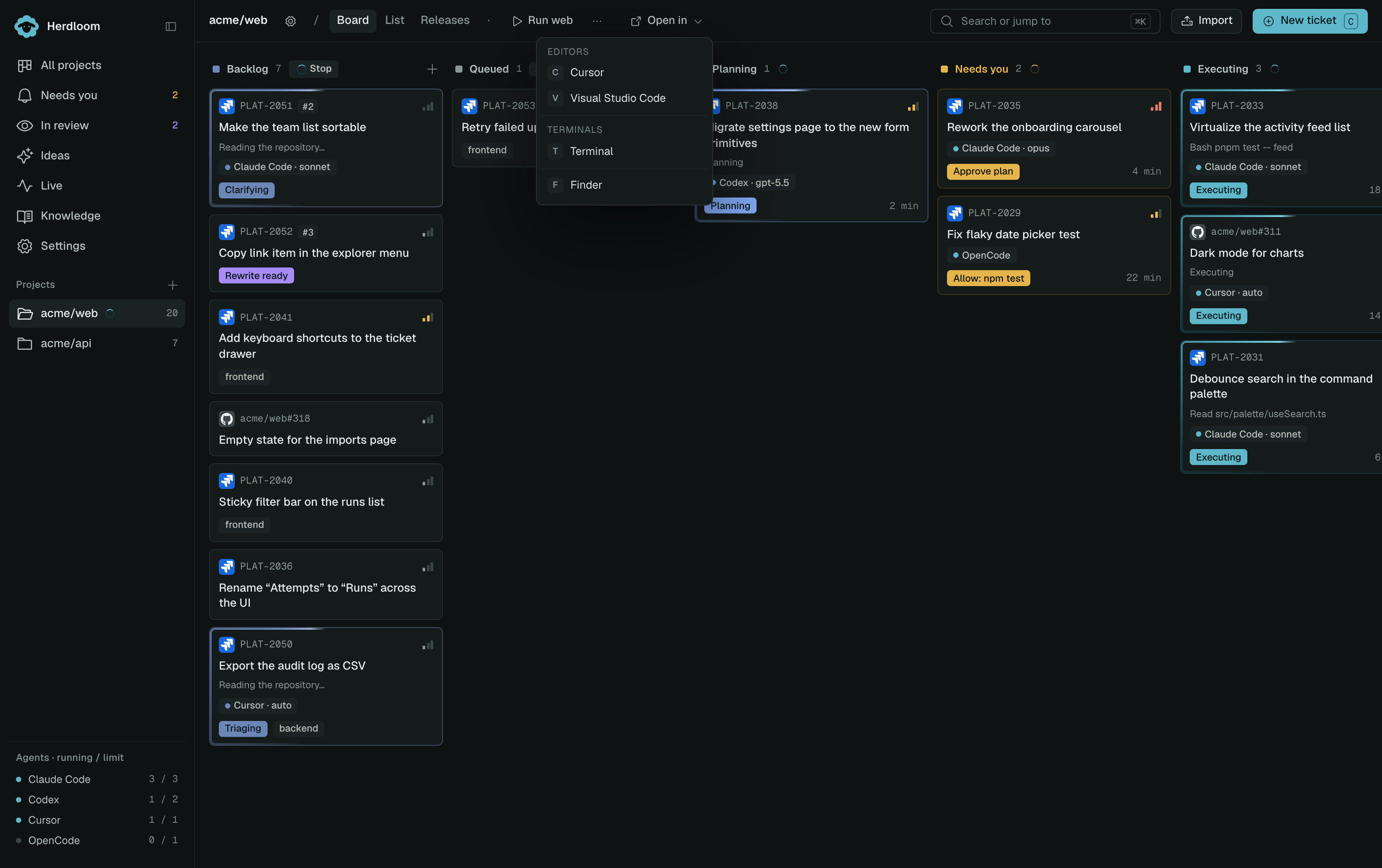
The menu lists what is actually installed on the Mac, grouped into editors, terminals and git clients, with each application’s real icon. Finder is on the list too. Pick one and it opens the folder.
The main button repeats your last choice, so the second time is one click. The caret beside it shows the rest of the menu.
Which folder opens
Section titled “Which folder opens”From the project header, the project’s repository: the main checkout, on whatever branch you have it on.
From a ticket’s drawer, its checkout, already on the work item’s shared branch with its dependencies installed and its local config files in place. That is the folder to open when a correction is faster made by hand than described to an agent.
Only those two kinds of folder are ever opened.
What it finds
Section titled “What it finds”Detection scans the usual application folders for editors, terminals and git clients it knows: VS Code and Insiders, Cursor, Kiro, Antigravity, Windsurf, Zed, the JetBrains IDEs, Sublime Text, Nova and Xcode; Terminal, iTerm, Warp and Ghostty; GitHub Desktop, Fork, Tower and Sourcetree.
Editors open through the launcher inside their own bundle, the same command you would type in a terminal, so the folder opens as a project even when the application is already running. Terminals, Finder and the git clients open the normal way.
An application installed while Herdloom is open appears in the menu within a few minutes.
Tickets in the same work item open the same folder, so your editor sees their combined changes.
Read the diff if you only want to read the change. Worktrees explains what a ticket’s checkout is and how long it lives.