
Install
Herdloom is one Mac app. There is nothing to sign up for, no installer to step through, and no configuration to write before the first launch.
Download and drag
Section titled “Download and drag”Open the releases page and download the disk image for the newest version. Open the image, drag the app into Applications, and eject it. That is the whole install.
The app is signed and notarised by Apple, so the first double-click opens it the way any other app opens. There is no security warning to dismiss and no right-click trick to learn.
What you need
Section titled “What you need”- A Mac with Apple silicon, running macOS 13 Ventura or newer. An Intel build is not published yet.
- Git, and a repository you can work in.
- At least one coding agent installed and signed in: Claude Code, Codex, Cursor, OpenCode, Antigravity or GitHub Copilot. Herdloom drives the CLI on your own login and your own subscription.
- The GitHub command line tool, signed in, if you want pull requests opened for you.
The first launch
Section titled “The first launch”Six pages come first, one idea each, built out of the app’s own parts rather than drawings. A ticket crosses Planning, Executing and In review. A knowledgebase fills up. Triage and Clarify read a backlog. The Jira and GitHub watchers pull issues in. The agents on this Mac get wired to Herdloom. The automation ladder moves from assisted to hands-off.
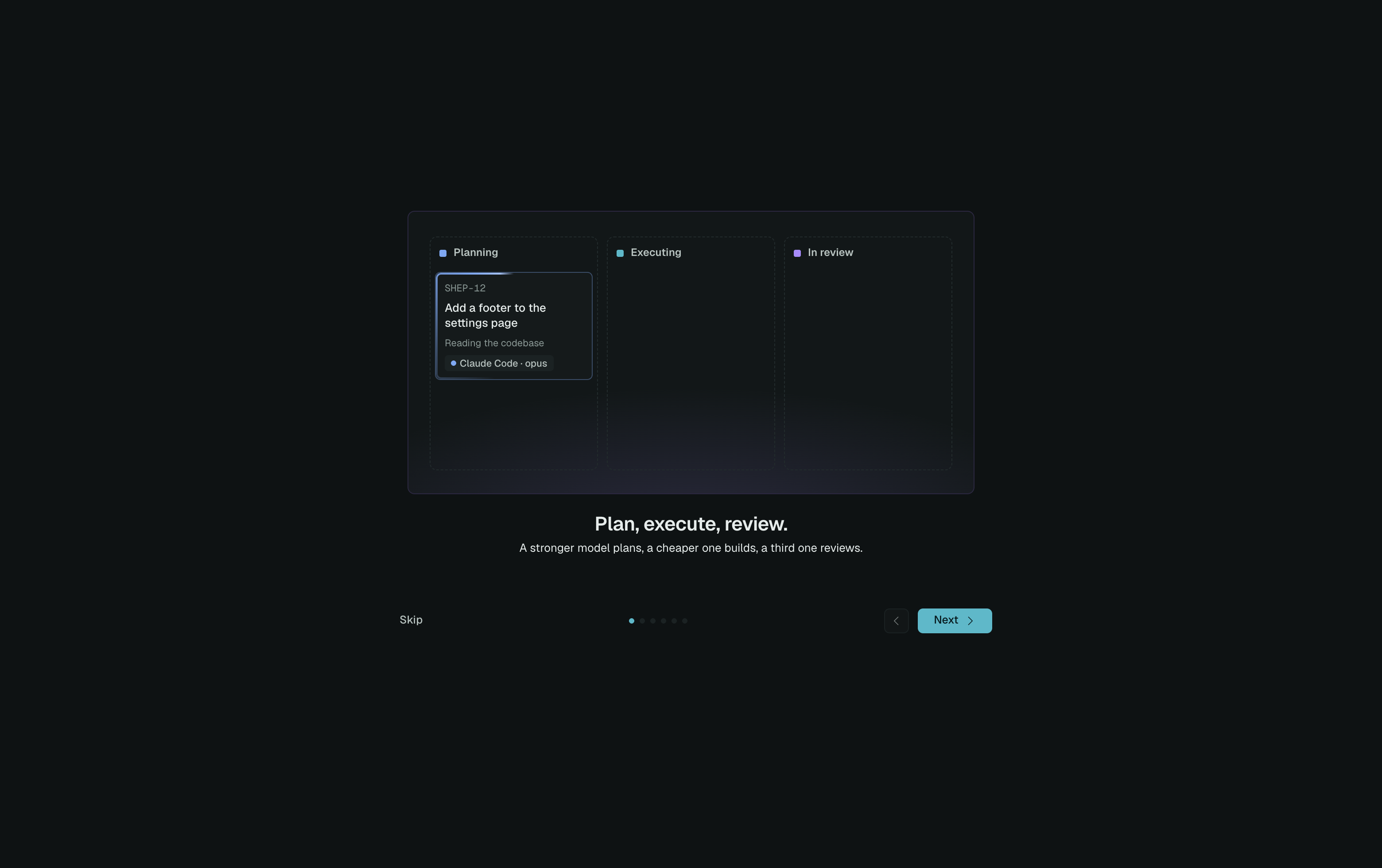
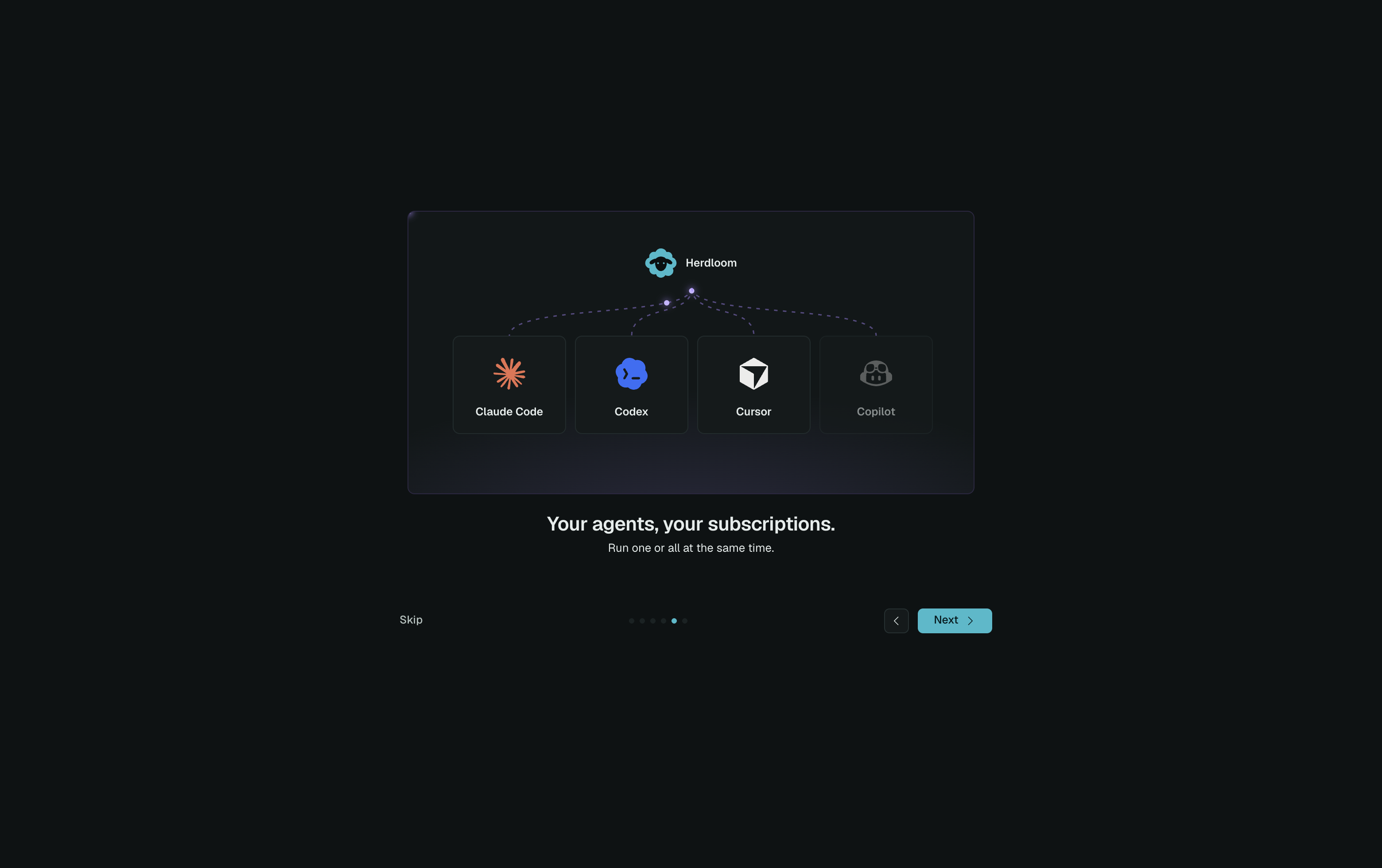
Skip sits in the corner of every page. After the last one comes the setup check, and after that a choice between a sample project and your own code.
Staying up to date
Section titled “Staying up to date”Herdloom checks its releases page shortly after launch and every few hours after that, and downloads a new version quietly. When one is ready, an Update to x.y.z item appears in the sidebar. Nothing restarts until you click it, and a click while agents are running asks first.
Update checks use your GitHub command line sign-in. Without that tool on the Mac, Herdloom neither checks nor complains, and you can install a new version from the releases page by hand. Settings, About shows the version you are running.
Let the setup check confirm the machine is ready, then take the tour.