
The setup check
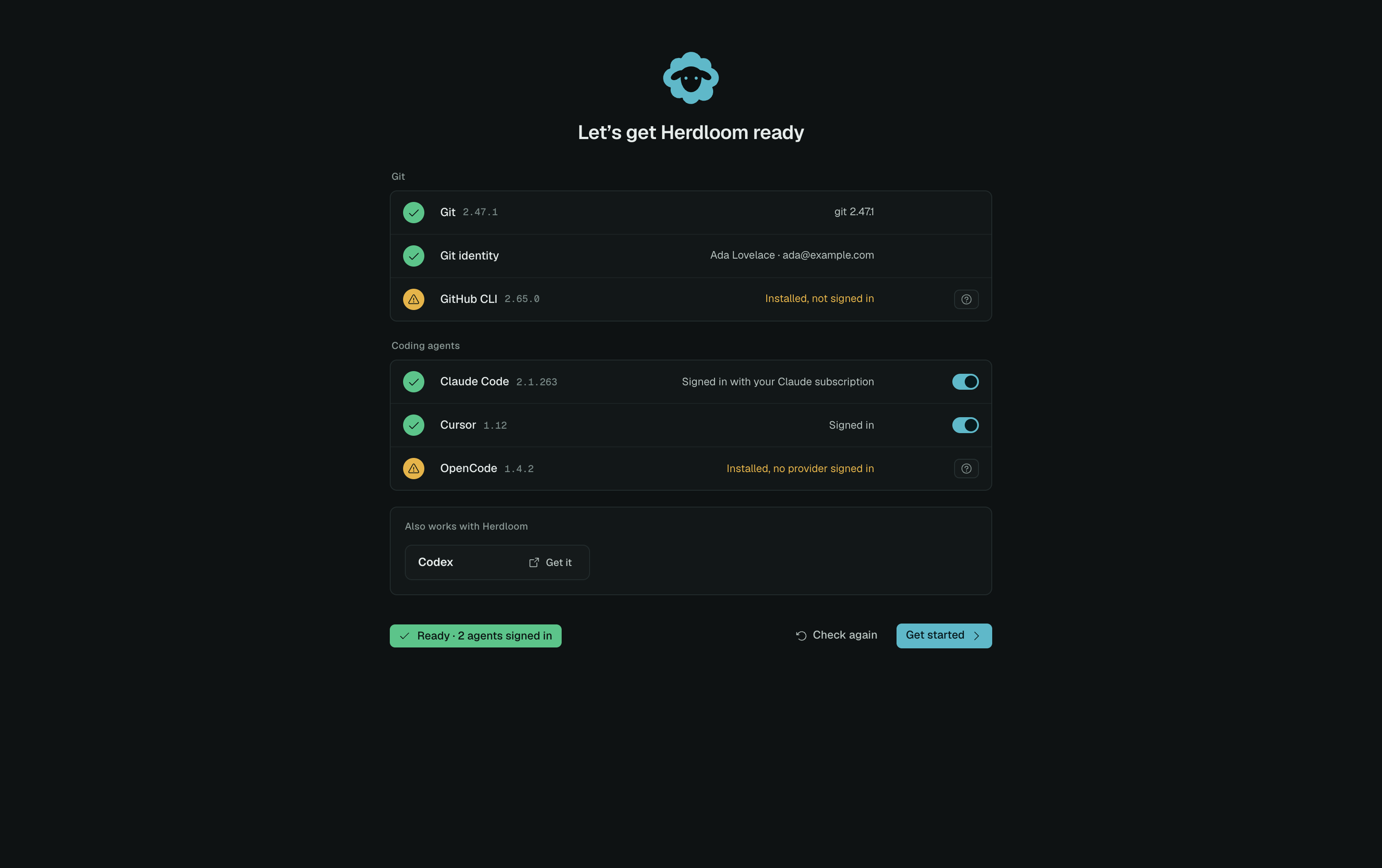
The setup check is the second thing a new install shows. It is one line per tool, with a green tick when that tool is ready and a button when it is not.
The git rows
Section titled “The git rows”Git shows the version found on the Mac. Git identity shows the name and address that will sign the commits agents make, since a checkout with no identity cannot commit at all. GitHub CLI shows its version and the account it is signed in as; it is what opens pull requests and what update checks read.
Any of these three that is missing gets an Install button. One click installs it and streams the output into the app, so you can watch it happen. Herdloom never opens Terminal and never types into your shell.
The agent rows
Section titled “The agent rows”Under Coding agents there is one row per agent found on the Mac: its name, the version it reports, and what its sign-in is. A Claude Code row says it is signed in with your Claude subscription, a Codex row with your ChatGPT plan, a Cursor row with the address on the account. The switch on the right turns that agent on or off for Herdloom, which is how you keep a CLI installed but out of the rotation.
An agent that is installed but signed out gets a Sign in button. It opens a dialog with the exact command to run in your own terminal, because signing in belongs to the CLI and its browser flow, not to Herdloom.
Where a CLI’s own status command reports a token that no longer works, the check makes a real authenticated call instead of believing it. An expired Cursor session shows up here rather than as a failed run an hour later.
Also works with
Section titled “Also works with”Agents that are not installed sit in their own card, Also works with Herdloom, one tile each with a link to get it. Herdloom does not install them for you: a global install from inside an app fails on most Macs, and the CLIs want their own sign-in anyway.
Once you have installed one, press Check again. The tools are re-detected and the new agent moves up into the list with the others.
The same screen later
Section titled “The same screen later”At the bottom, a chip says whether the machine is ready and how many agents are signed in, and Get started moves on. The same check lives in Settings, Agents for every day after that, with two more controls per signed-in agent: how many tickets it works on at once across all projects, and its permission mode. Which agent and model does what is a separate, per-project decision, under Automation.
Take the tour on a sample project, or read what the Agents settings add to this screen.