
How to use Ideas
Open Ideas in the sidebar when you know what you want to improve but have not worked out the tickets yet. Choose a project, describe the outcome, and shape the work through a conversation.
For a short first run, follow Start with an idea. This guide covers the everyday controls: choosing an agent, sending context, revising proposals, and returning to a conversation.
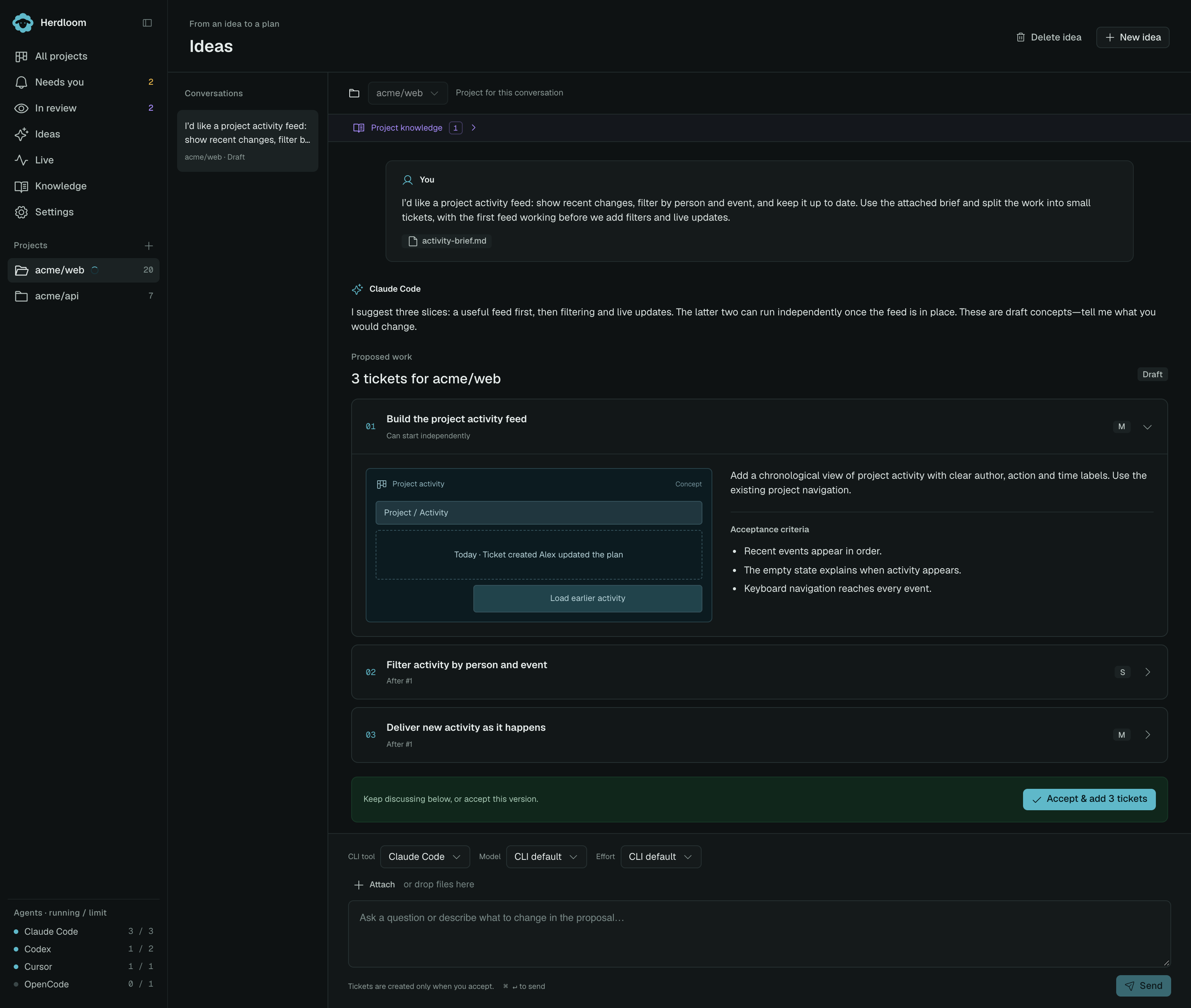
Example conversation in Herdloom’s demo UI. The proposal is still a draft; no tickets have been added yet.
From a conversation to a backlog
Section titled “From a conversation to a backlog”In this example, the request is a project activity feed with filters and live updates. A short brief provides the context. The agent proposes the feed first, with filtering and live updates depending on it.
You can ask for a smaller first version, combine tickets, or add missing requirements before accepting. When you accept, the proposed tickets enter the backlog with their dependencies and the attached brief. Continue in the same conversation when you want to add more work.
Choose who to think with
Section titled “Choose who to think with”Pick an installed, enabled CLI tool, then its model and reasoning effort. CLI default uses the tool’s own choice. Tools that do not expose an effort setting manage it themselves.
The agent reads the selected repository to ground its suggestions. It can ask questions, identify assumptions, or propose a set of tickets. You can change the agent between replies; the conversation and earlier proposals remain available to the next agent.
Add reference material
Section titled “Add reference material”Use project knowledge
Section titled “Use project knowledge”Ideas automatically includes knowledgebases linked to this project and enabled for Plan. Expand Project knowledge below the project picker to see the available sources. The agent receives their maps and rules, with read-only access to relevant pages, on each reply.
A purple animated book shows when project knowledge is available while the agent thinks. It changes to Consulting the knowledgebase… when the agent reports reading or searching a linked source. Completed replies keep a Knowledge context label naming the supplied sources. These labels show the context provided; they do not guarantee that every page was read.
Change the project’s Plan knowledge settings to choose which sources Ideas uses. Ideas does not run a separate knowledge consultation, even when Plan is set to use a brief.
When you accept the proposal, the agent’s recorded findings and citations follow each ticket. Open Details → Knowledge to see From Ideas. Planning and execution can reuse those findings while the ticket and relevant pages stay unchanged, including when you skip planning for a small task. The full conversation is not copied into every execution prompt.

An example from the current app: the accepted ticket already knows to reuse the accessible Button. See when a new consultation is needed.
Attach files
Section titled “Attach files”Choose Attach in the composer, drop files onto the attachment area, or paste a screenshot. Add a message explaining what the agent should use them for, then send. Specs, notes, and images appear with your message and stay available for later replies.
Each ticket you accept receives all context files sent in that idea so far. Adding more files later includes them in future ticket batches; tickets already created keep their existing attachments. Removing an unsent file uses the × beside its name. Deleting the idea keeps any uploaded files still referenced by its tickets. Files attached from their original location are never deleted.
Explore the proposal
Section titled “Explore the proposal”Each proposed ticket has its own full-width expandable row, with its title, size, and dependencies visible at a glance. Open a row to see the description, acceptance criteria, and a simple screen or workflow sketch. The sketches are concepts to discuss, rather than finished designs. The first ticket opens by default; you can expand others independently to compare the work.
Reply with what you want to change: merge two tickets, leave something out, explain an assumption, or take a different approach. The next proposal replaces the draft. Earlier versions stay folded into the conversation so you can look back at the decisions.
Conversations are saved locally and listed on the left. You can leave the page and return later. Stop reply ends the current response; send another message to continue.
To remove a saved conversation, select it and choose Delete idea in the header. Confirming permanently deletes its conversation and draft proposals and stops any active reply. Tickets you already added to the backlog are kept.
Accept the work
Section titled “Accept the work”When the latest proposal is right, choose Accept & add tickets. Herdloom adds the whole proposal to the selected project’s backlog, including its acceptance criteria and dependencies. The new tickets use the project’s execution defaults.
Ideas has already ranked these tickets and recorded their dependencies. When Bundles and queues ranked tickets is enabled in project Automation, the accepted tickets are bundled and queued automatically without waiting for a separate triage pass. With that rule off, they stay in Backlog until you choose what to run.
Open individual tickets from the accepted proposal, or choose View backlog to see them together. Nothing is added while you are still discussing the idea.
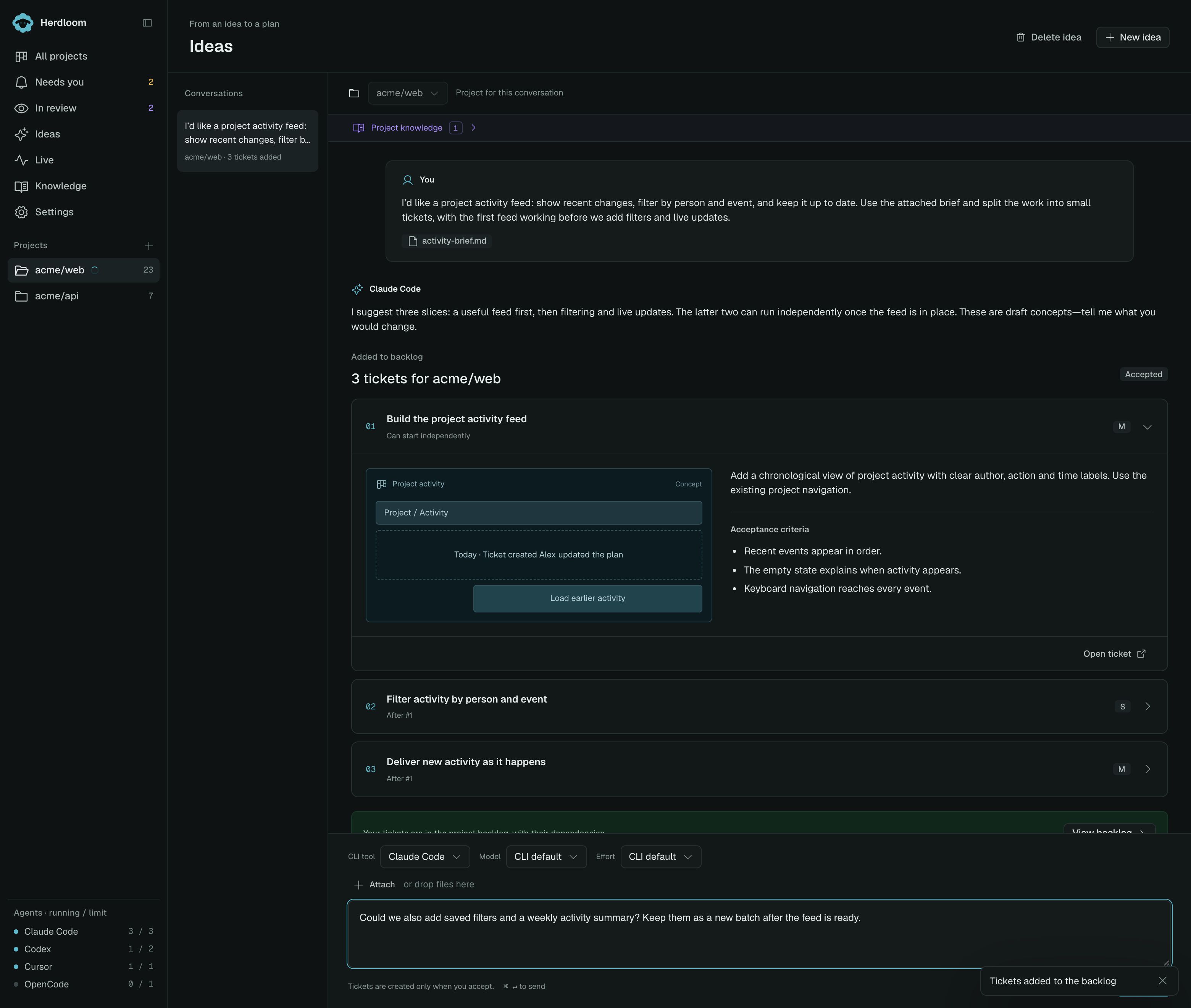
Example conversation in Herdloom’s demo UI after accepting the proposal. The follow-up message is still unsent.
Keep the idea going
Section titled “Keep the idea going”Keep prompting in the same conversation after accepting to plan additional tickets. For example, type “Could we also add saved filters to this idea?” and choose Send. There is no need to start a new idea. Accepted proposals keep their ticket links, and accepting a follow-up adds only that new proposal to the backlog.
How Ideas works explains how proposals, accepted tickets, and later additions fit together. Write a ticket worth running explains what makes a good ticket. Triage the backlog helps order the work already in your project.